Build a JavaScript chat app with PubNub
Build a browser chat with the PubNub JavaScript SDK: real-time messages, who's online, message history, display names and timestamps.
 Start Android (Kotlin) tutorial
 Start iOS tutorial
 Start Flutter tutorial
 Start React Native tutorial
Set up your environment
In this tutorial you build a chat that runs in the browser, using the PubNub JavaScript SDK. It's plain HTML and JavaScript, with no build step and no server. You need:
- A current browser: Chrome, Firefox, Safari or Edge
- A code editor, for example Visual Studio Code
- Git
Get the code
Clone the repository and open its folder:
git clone https://github.com/PubNubDevelopers/Javascript-Chat-Tutorial-App.git
cd Javascript-Chat-Tutorial-App
The repository has one folder per step of the build, from Step 1 - Chat Layout to Step 6 - Message Timestamps. Open each step's folder as you go, starting with Step 1 - Chat Layout/index.html. Each build step explains the key parts of the code; the step's folder has the complete file to compare with or run.
Tested with the PubNub JavaScript SDK 13.1.3 (October 2026).
Create keys
You need a free PubNub account and a keyset with Presence and Message Persistence. Create it with your AI coding tool and the PubNub MCP Server, or by hand in the Admin Portal.
With the PubNub MCP Server
The PubNub MCP Server lets your AI tool create apps and keysets in your account. It runs at https://mcp.pubnub.com, and you sign in with your PubNub account, so there's nothing to install. If MCP connections are turned off for your organization, an Account Owner or Account Admin can turn them on in Organization settings.
Create a free account if you don't have one, then add the server to your tool:
- Claude Code: run
claude mcp add --scope user --transport http pubnub https://mcp.pubnub.com, startclaude, enter/mcp, select pubnub, then authenticate, and sign in. - Cursor: add
{"mcpServers": {"PubNub": {"url": "https://mcp.pubnub.com"}}}to.cursor/mcp.json, click Enable on the notification Cursor shows, and sign in when prompted. - VS Code: add
{"servers": {"PubNub": {"type": "http", "url": "https://mcp.pubnub.com"}}}to.vscode/mcp.jsonand sign in when prompted. - Claude Desktop, Codex, Gemini CLI and OpenCode: see Set up the MCP server.
Then ask your tool: "Create a PubNub app with a testing keyset for a chat tutorial. Turn on Presence for all channels and Message Persistence, then show me the publish and subscribe keys." Copy the Publish key and the Subscribe key it shows. You paste them into the code in the build steps.
Before you build, open the keyset in the Admin Portal and check that Presence tracks All channels. The portal steps below explain why the online count needs it.
In the Admin Portal
You'll need to create an account to use your own keysSign in to the Admin Portal. Go to Apps & Keysets and click Create app. Give the app a name.
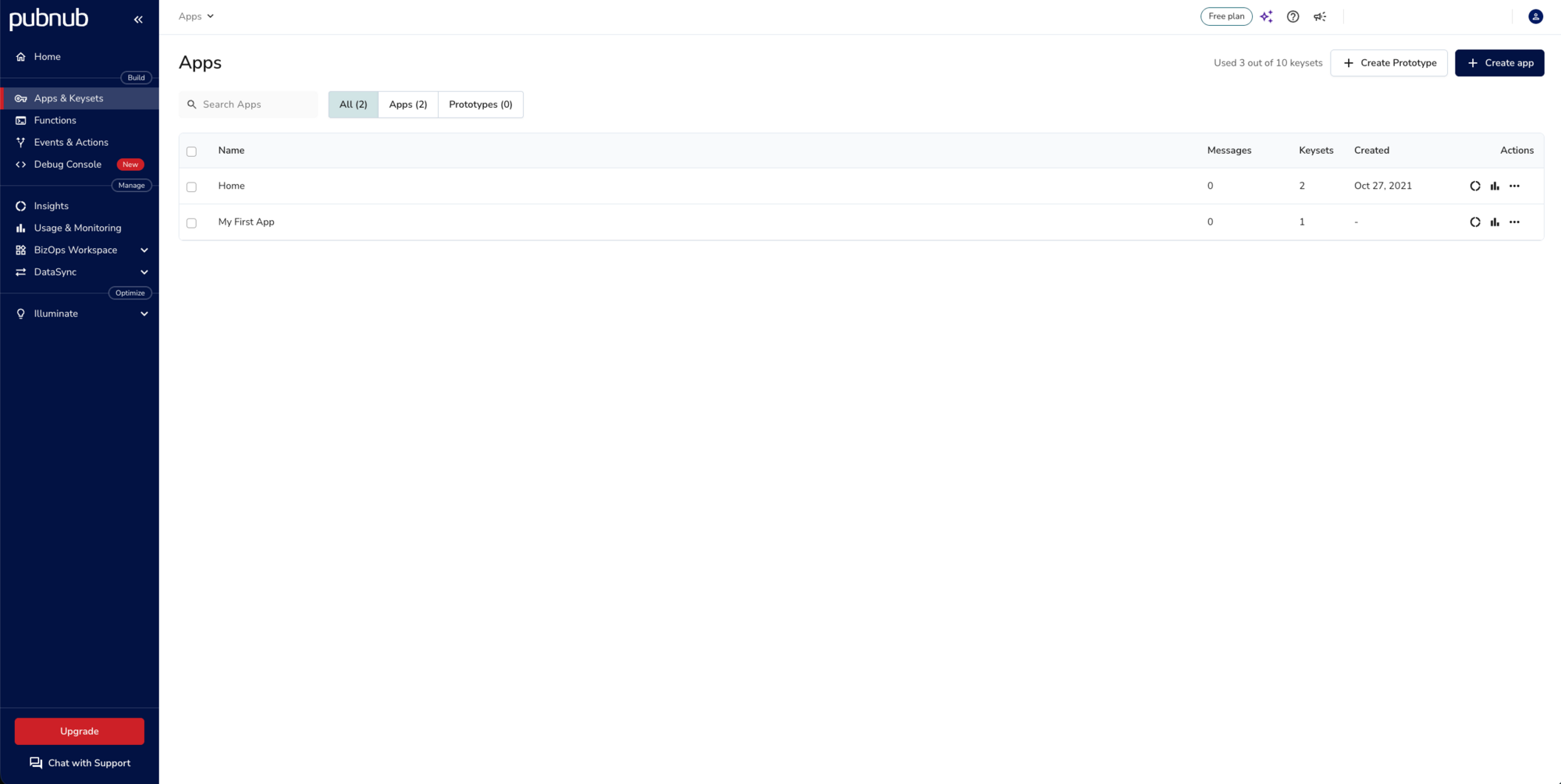
Open the app and click Create keyset.
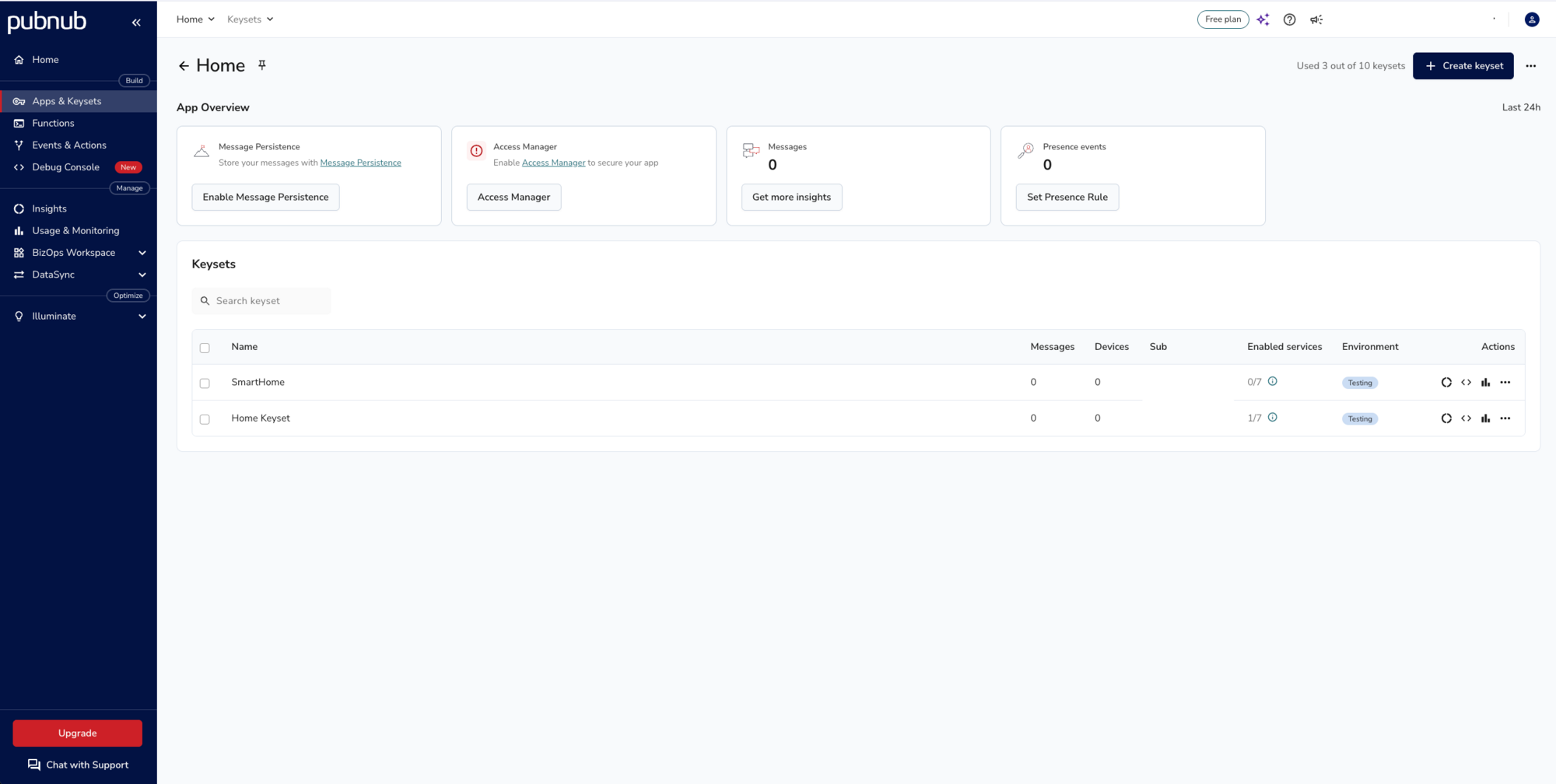
Enter a keyset name, keep the environment on Testing and click Next.
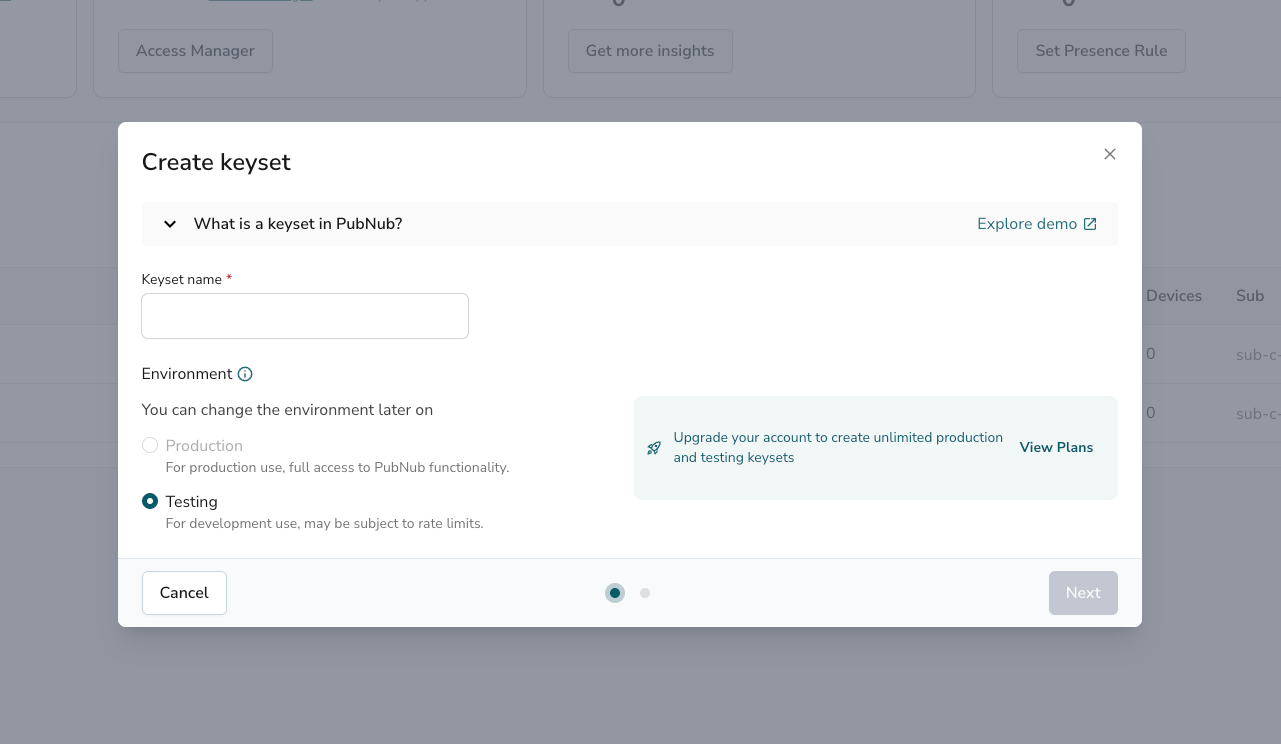
The next screen lists the services that come with the keyset. Presence and Message Persistence are already on. Under Presence, choose All channels, then click Create.
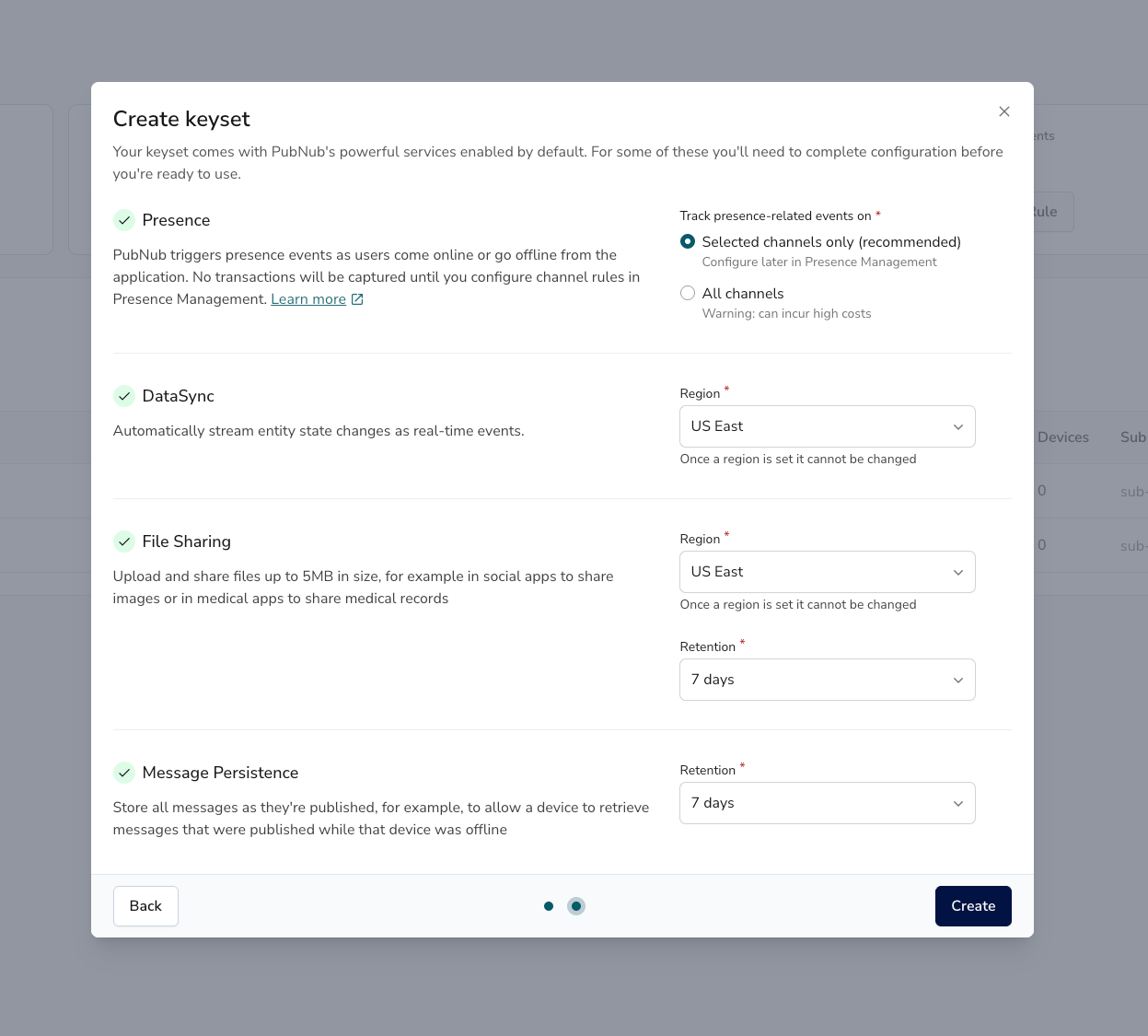
The default, Selected channels only, doesn't track presence until you add a rule in Presence Management, so the online count in this tutorial would never change. All channels is fine for a test keyset with a few users; the portal warns it can incur high costs on a busy one. On a production keyset, keep Selected channels only and add a rule for chat-channel.
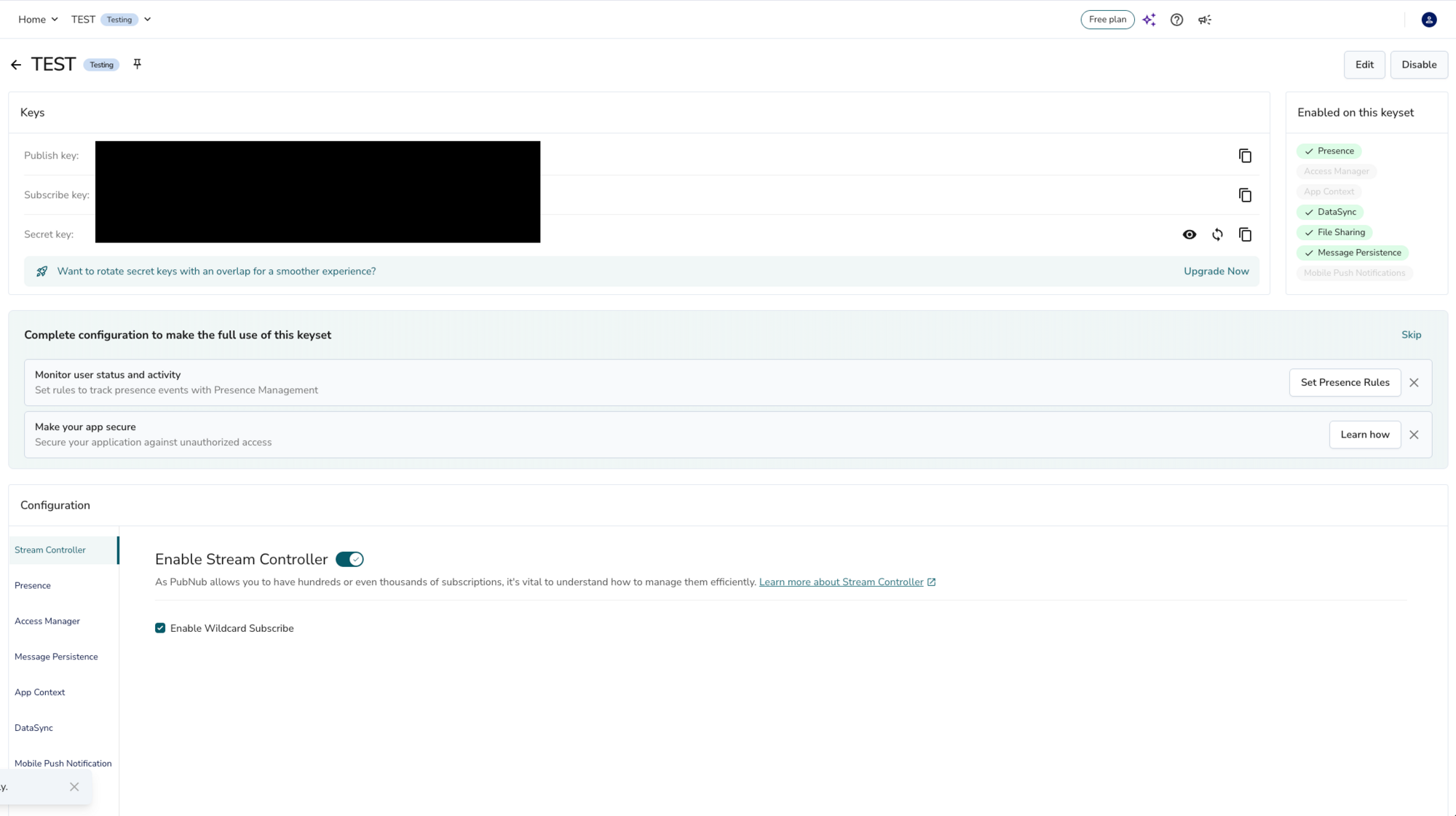
Finally, copy the Publish key and the Subscribe key from the Keys panel. You paste them into the code in the build steps.
Build and run
You build the chat in six steps. Each step adds one feature to index.html, and each has a matching folder in the repository.
Step 1. Create the chat layout
Open Step 1 - Chat Layout/index.html in your editor and in your browser. The page has everything the chat needs, and no chat logic yet:
- The chat options dialog (
#editNameModal), where a user sets their display name in step 5. - The messages area (
#messages-area), where messages appear. - The input area with the message box, the Send Message button and the Chat Options button, and the Online Users badge.
The page loads Bootstrap for styling and the PubNub JavaScript SDK from the PubNub CDN:
<script src="https://cdn.pubnub.com/sdk/javascript/pubnub.13.1.3.min.js"></script>The chat logic goes where the file says // Add chat logic here.
Step 2. Send and receive messages
Open Step 2 - Basic Chat/index.html: it replaces // Add chat logic here with the chat logic. The key parts are below. Replace YOUR_PUBLISH_KEY and YOUR_SUBSCRIBE_KEY with your keys.
const pubnub = new PubNub({ // Set your PubNub keys here.
    publishKey: 'YOUR_PUBLISH_KEY',
    subscribeKey: 'YOUR_SUBSCRIBE_KEY',
    userId: 'Anon-' + makeid(5)
});
Every client needs a User ID. Here it's a random Anon- name, so each browser tab is a different user. In a real app, give each user a stable ID: PubNub counts monthly active users by User ID.
Next, the code subscribes to the chat channel. pubnub.channel('chat-channel') gives you a channel entity, and channel.subscription() a subscription to it. Messages published on the channel arrive in onMessage, and subscribe() opens the connection:
const subscription = channel.subscription(); // Subscribe to receive the channel's messages.
subscription.onMessage = (event) => { // Get new messages.
    if (event.publisher === pubnub.getUserId()) { // Check who sent the message.
        chat.publishMessage('You', event.message);
    } else {
        chat.receiveMessage(event.publisher, event.message);
    }
};
subscription.subscribe();
Sending is a single publish() call, run when you click Send Message or press Enter. Shift+Enter adds a new line:
function publishMessage() { // Send messages with PubNub.
    const msg = input.value.trim();
    input.value = '';
    if (msg !== '') {
        pubnub.publish({ channel: channelName, message: msg })
            .catch((error) => console.log(error));
    }
}
Each message is shown with textContent, not innerHTML. Your keys are in the page source, so anyone can publish to the channel. Showing messages as plain text stops HTML or scripts in a message from running in other people's browsers:
const text = document.createElement('p');
text.className = `card-text float-${side} msg-text`;
text.textContent = msg;
Open the page in two browser tabs and send a message from each. Your own messages show as You. The other tab's messages show its User ID.
Step 3. Show who's online
Presence tells you who is subscribed to a channel. Ask for presence events when you create the subscription (open Step 3 - Add User Presence/index.html to compare):
const subscription = channel.subscription({ receivePresenceEvents: true }); // Subscribe to receive messages and presence events.Presence events then arrive in onPresence. Join, leave, timeout and interval events carry the channel's current occupancy. On busy channels PubNub switches to interval events, which report the count periodically instead of every join and leave. state-change events carry no occupancy, so skip them:
subscription.onPresence = (event) => { // Update the number of online users on join, leave, timeout and interval events.
    if (event.action !== 'state-change') onlineCount.textContent = event.occupancy; // state-change events carry no occupancy.
};
To show the count as soon as the page connects, ask hereNow() once the connection is up. The status listener sits on the PubNub client, because it reports the connection, not a single channel:
pubnub.addListener({ // Count who is online once the connection to PubNub is up.
    status: (statusEvent) => {
        if (statusEvent.category === 'PNConnectedCategory') {
            updateOccupancy();
        }
    }
});function updateOccupancy() { // Ask PubNub how many users are on the channel right now.
pubnub.hereNow({ channels: [channelName] })
.then((response) => {
onlineCount.textContent = response.totalOccupancy;
})
.catch((error) => console.log(error));
}By default, a closed tab still counts as online until its presence timeout (5 minutes by default). Presence Management in the Admin Portal can report a dropped connection as a leave instead. In the code, unsubscribe when the page goes away, and PubNub sends a leave event right away:
window.addEventListener('pagehide', () => { // Leave the channel when the tab closes, so the others' count drops right away.
    subscription.unsubscribe();
});
window.addEventListener('pageshow', (event) => { // Back button: the browser restored this page from its cache, so subscribe again.
    if (event.persisted) subscription.subscribe();
});
pagehide also fires when the browser keeps the page in its back/forward cache. If the reader comes back with the back button, pageshow with event.persisted subscribes again.
Open a second tab and watch Online Users go up. Close it, and the count goes down. If the count never changes, check that Presence tracks All channels on your keyset, or that a Presence Management rule covers chat-channel.
Step 4. Load earlier messages
With Message Persistence, PubNub stores the messages published on the channel, for 7 days on a Testing keyset. Fetch the last 10 when the page opens (Step 4 - Add Message Persistence/index.html):
pubnub.fetchMessages({ channels: [channelName], count: 10 }) // Get the last 10 messages sent in the chat.
    .then((response) => {
        (response.channels[channelName] || []).forEach((message) => {
            if (message.uuid === pubnub.getUserId()) { // Check who sent the message.
                chat.publishMessage('You', message.message);
            } else {
                chat.receiveMessage(message.uuid, message.message);
            }
        });
    })
    .catch((error) => console.log(error));
Each stored message carries the sender's User ID in uuid. Send a few messages and reload the page: they're still there. Your own earlier messages now show an Anon- ID instead of You, because every page load picks a new random User ID. A real app keeps one User ID per user.
Step 5. Add display names
User IDs aren't friendly names. Let each user pick a display name in Chat Options and send it with every message (Step 5 - Add Usernames/index.html). From this step on, a message is an object with the text and the sender's name instead of a plain string:
pubnub.publish({ channel: channelName, message: { text: msg, name: displayName } }) // Send your name with every message.Clicking Save stores the name in the browser's localStorage, so it survives a reload:
saveButton.addEventListener('click', () => { // Save your display name. It goes with every message you send from now on.
    displayName = nameInput.value.replace(/[^\p{L}\p{N} ]/gu, '').substring(0, 30); // Letters, digits and spaces, up to 30 characters.
    localStorage.setItem('chat-display-name', displayName);
    alert('Your username has been updated.');
    bootstrap.Modal.getOrCreateInstance(document.getElementById('editNameModal')).hide(); // Close Chat Options.
});
When a message arrives, live or from history, readMessage() unpacks it. The chat channel may still hold plain-text messages from the earlier steps, so it accepts both forms. A message without a name shows the sender's User ID:
function readMessage(message) { // Messages from steps 2-4 are plain text; from step 5 on they carry a name.
    if (message && typeof message === 'object') { // Anyone with the keys can publish, so don't trust the shape.
        return { text: String(message.text ?? ''), name: typeof message.name === 'string' ? message.name : '' };
    }
    return { text: String(message ?? ''), name: '' };
}subscription.onMessage = (event) => { // Get new messages.
const { text, name } = readMessage(event.message);
if (event.publisher === pubnub.getUserId()) { // Check who sent the message.
chat.publishMessage('You', text);
} else {
chat.receiveMessage(name || event.publisher, text);
}
};Names are shown with textContent too, like the message text. Set a name in one tab and send a message: the other tab shows it. Messages sent before the change keep the old name, because each message carries the name it was sent with.
Step 6. Show when each message was sent
Every message has a timetoken, PubNub's timestamp in 100-nanosecond intervals since 1 January 1970 (Step 6 - Message Timestamps/index.html). Divide it by 10,000 to get milliseconds for a JavaScript Date, and show it next to the name:
const time = document.createElement('small');
time.textContent = ' - ' + new Date(Math.trunc(Number(timetoken) / 10000)).toLocaleString(); // A timetoken counts 100-nanosecond intervals.
title.append(nameSpan, time);
The live messages pass event.timetoken and the stored ones message.timetoken to the message card. The root index.html in the repository is this finished app.

Congratulations - what's next?
You have a working chat with live messages, an online count, history, display names and timestamps, all on the PubNub JavaScript SDK.
To store user profiles and channel details on PubNub, look at DataSync. It needs Access Manager, so the app gets its users' tokens from your server.
Go further with the JavaScript SDK
JavaScript SDK documentation Presence Message PersistenceBefore you go to production
This tutorial lets anyone with your keys publish and read the channel. Use Access Manager to give each user a token for the channels they may use, and give each user a stable User ID instead of a random one.
Ready to get beyond proof of concept?
Schedule a 15-minute chat with one of our experts to get your project moving.
Talk to an ExpertTake it to production on your own keys
Create a free PubNub account to get permanent keys for this app.