Meet the new Debug Console in Portal

A new Debug Console for real keysets
Debug Console is a new tool in Portal for working against a real keyset without leaving the admin UI. It replaces the legacy Debug Console (Playground). Subscribe and publish, inspect Presence, manage channel groups and files, fetch history, and generate, revoke and parse Access Manager tokens in one place.
Why it helps
- One session across all tabs with the same User ID, permissions, and optional encryption.
- Authenticate as root or with a pre-built or freshly generated Access Manager token.
- Share channels and channel groups between tabs.
- Use clear prompts when Presence, Persistence, Files, or Access Manager must be enabled.
- See the active JS SDK version in the header.
Session: Authenticate as you need
Every tab runs under one Debug Console session. Open Session settings to restart with a User ID, Root Permissions, or an Access Manager token. Paste a token from your backend, or generate one in Access Manager. You can also use a cipher key with AES-CBC or Legacy crypto.
The header shows the active User ID and either Root Permissions or a shortened token. This helps you reproduce PAM denials and test a restricted client.
Live log
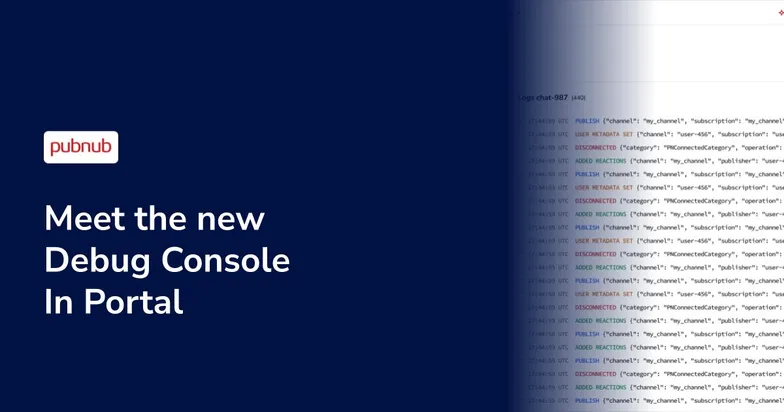
Subscribe to a channel, channel group, or wildcard. Keep several subscriptions in the sidebar and switch between them without leaving the tab.
- Choose Channel, Channel group, or Wildcard.
- Publish a plain string or JSON payload on the active channel.
- Use advanced options for GET or POST, Store in History, TTL, Custom Message Type, and Metadata.
- View publishes, signals, files, App Context metadata, message actions, connection status, and Presence events.
- Pause, resume, clear, and filter the feed.
- Get a clear enable link when Persistence, Presence, App Context, or Files is not enabled.
- Use these controls to reproduce a client state before you move to a feature-specific tab.
Presence
Look up who is online without leaving Portal.
- Query any channel for occupancy, connected users, and Presence events.
- Use live occupancy when Presence rules allow it, or refresh on demand.
- View Presence event types and per-user Where now JSON.
- Query a User ID for WhereNow, HereNow, and client state.
- Edit Presence state when you query the session User ID.
- Get warnings and Configure or Enable links when Presence is off or no rule matches the channel.

Channel groups
Create and inspect channel groups against the keyset.
- Add an existing group to the sidebar, or create a new group with a name and comma-separated channels.
- Select a group to see a paginated channel table.
- Add channels, remove channels, or delete the group permanently.
- Remove a group from the sidebar without deleting it on the keyset.
- Reuse groups from this tab in Live log.

Persistence
Fetch stored messages when Message Persistence is enabled.
- Add channels and select which ones are included.
- Choose a limit of 10, 20, 50, or 100 messages.
- Set an optional UTC time range.
- Review the message, channel, sender User ID, timetoken, and message type.
- Expand a row to inspect the full JSON.
- Use the enable link when Message Persistence is off.

Access Manager
Generate, inspect, and revoke tokens without leaving Debug Console.
- Generate manual tokens with TTL, an optional authorized User ID, resources, patterns, permissions, and Meta JSON.
- Generate a token from JSON that includes
ttl. - Copy a token and use it in Session settings.
- Parse a token to inspect its grants and metadata.
- Revoke a token when Revoke v3 is enabled.
Typical loop: Generate or paste a token, open Session settings, select Use Access Manager token, restart the session, and test Live log, Presence, or Files under that grant.

Files
Work with File Sharing on a channel when it is enabled.
- Select a channel from the shared channel list.
- List files with their name, size, and creation time.
- Upload a file. Limits and retention come from the keyset.
- Select files to download or delete with confirmation.
- Upload from the empty state and review the active retention and limits.
- Use the enable link when File Sharing is off.

Get started
Open PubNub Portal and go to Build → Debug Console. Pick an app and keyset. Start with Live log or Access Manager, depending on what you need to debug.