Build a collaborative drawing app with JavaScript
Build CoDoodler, a shared canvas with the PubNub JavaScript SDK: real-time strokes, live cursors with signals, names in Presence state and who's online.

Set up your environment
In this tutorial you look at how CoDoodler is built: a drawing app in the browser where everyone on the page draws on the same canvas. You see the others' strokes, their cursors and their names as they move, all through the PubNub JavaScript SDK. It's plain HTML, CSS and JavaScript with the Canvas API, with no build step and no server. You need:
A current browser: Chrome, Firefox, Safari or Edge
A code editor, for example Visual Studio Code
Get the code
Clone the repository and open its folder:
git clone https://github.com/PubNubDevelopers/collaboration-demo.git
cd collaboration-demo
The app is in four files: index.html (the page), js/config.js (your keys and the PubNub client), js/app.js (the app logic) and timeout.html (shown when you've been idle). The build steps explain the key parts of js/app.js; the file has the complete code.
Tested with the PubNub JavaScript SDK 13.1.2 (October 2026).
Create keys
You need a free PubNub account and a keyset with Presence on. Create it with your AI coding tool and the PubNub MCP Server, or by hand in the Admin Portal.
With the PubNub MCP Server
The PubNub MCP Server lets your AI tool create apps and keysets in your account. It runs at https://mcp.pubnub.com, and you sign in with your PubNub account, so there's nothing to install. If MCP connections are turned off for your organization, an Account Owner or Account Admin can turn them on in Organization settings.
Create a free account if you don't have one, then add the server to your tool:
- Claude Code: run
claude mcp add --scope user --transport http pubnub https://mcp.pubnub.com, startclaude, enter/mcp, select pubnub, then authenticate, and sign in. - Cursor: add
{"mcpServers": {"PubNub": {"url": "https://mcp.pubnub.com"}}}to.cursor/mcp.json, turn it on in Cursor Settings → Tools & MCP and sign in when prompted. - VS Code: add
{"servers": {"PubNub": {"type": "http", "url": "https://mcp.pubnub.com"}}}to.vscode/mcp.jsonand sign in when prompted. - Claude Desktop, Codex, Gemini CLI and OpenCode: see Set up the MCP server.
Then ask your tool: "Create a PubNub app with a testing keyset for a collaborative drawing tutorial. Turn on Presence for all channels, then show me the publish and subscribe keys." Copy the Publish key and the Subscribe key it shows. You paste them into js/config.js in the build steps.
Before you build, open the keyset in the Admin Portal and check that Presence tracks All channels. The portal steps below explain why the names and the user count need it.
In the Admin Portal
Sign in to the Admin Portal, or create a free account. Go to Apps & Keysets and click Create app. Give the app a name.
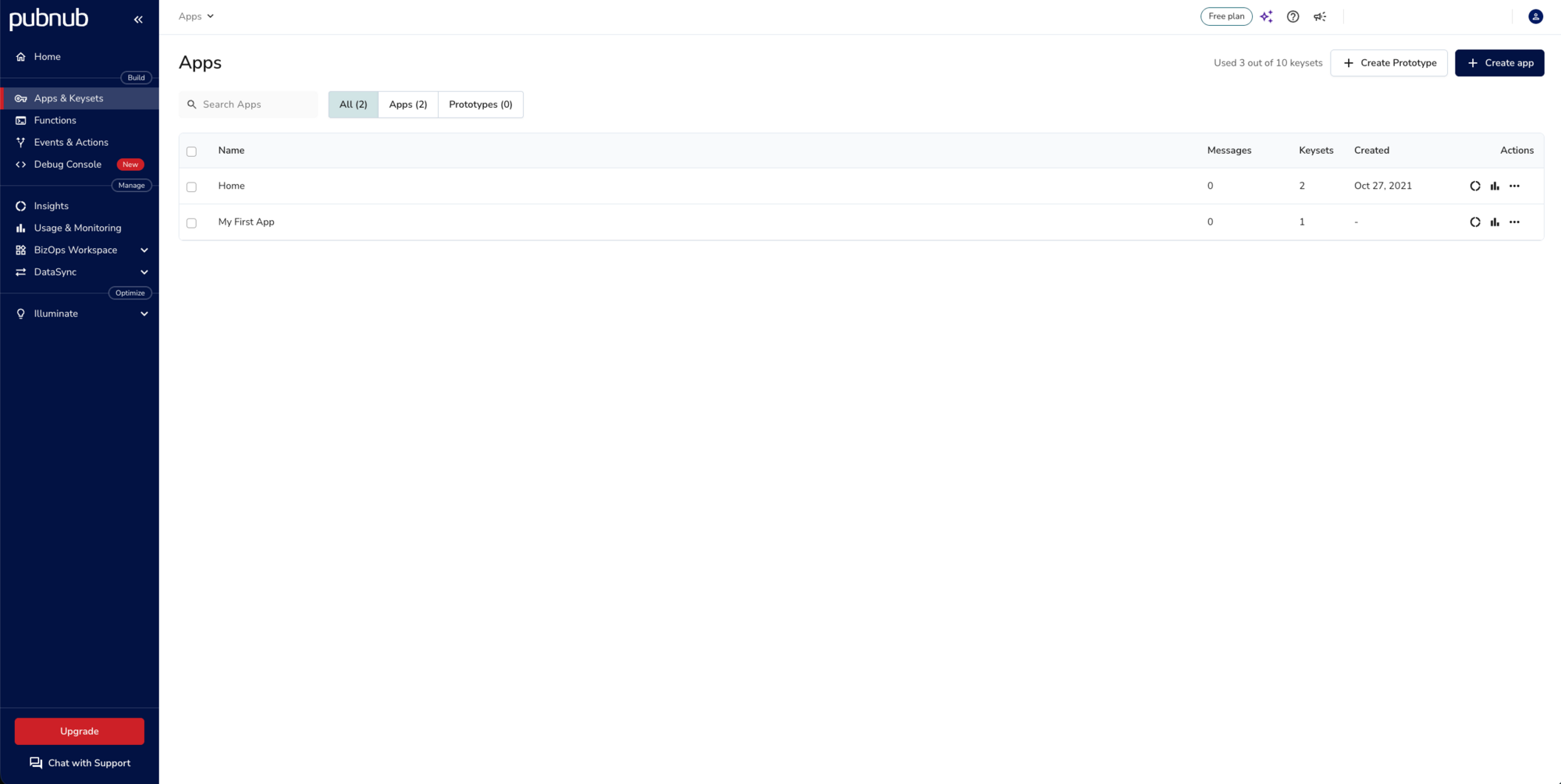
Open the app and click Create keyset.
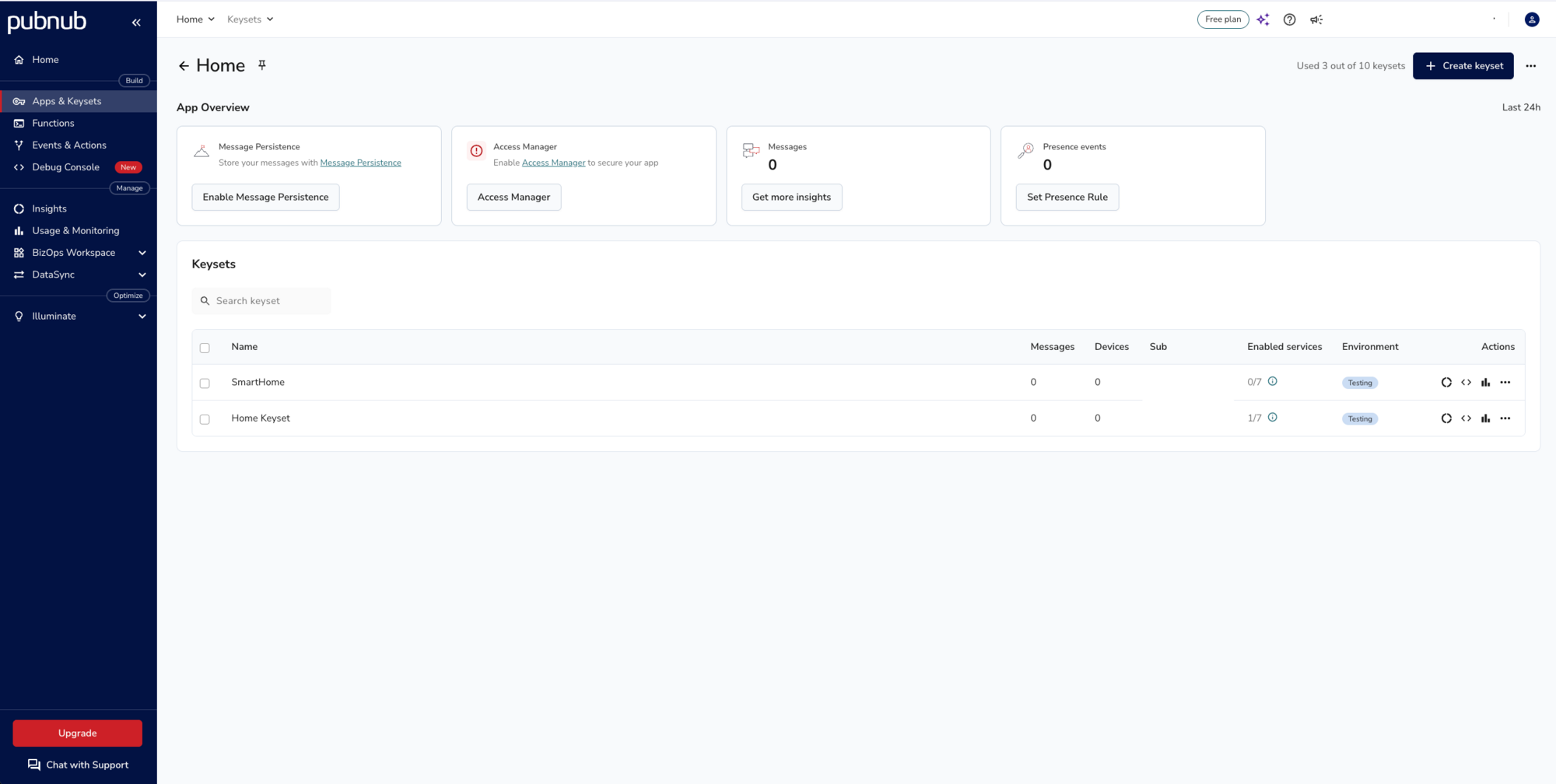
Enter a keyset name, keep the environment on Testing and click Next.
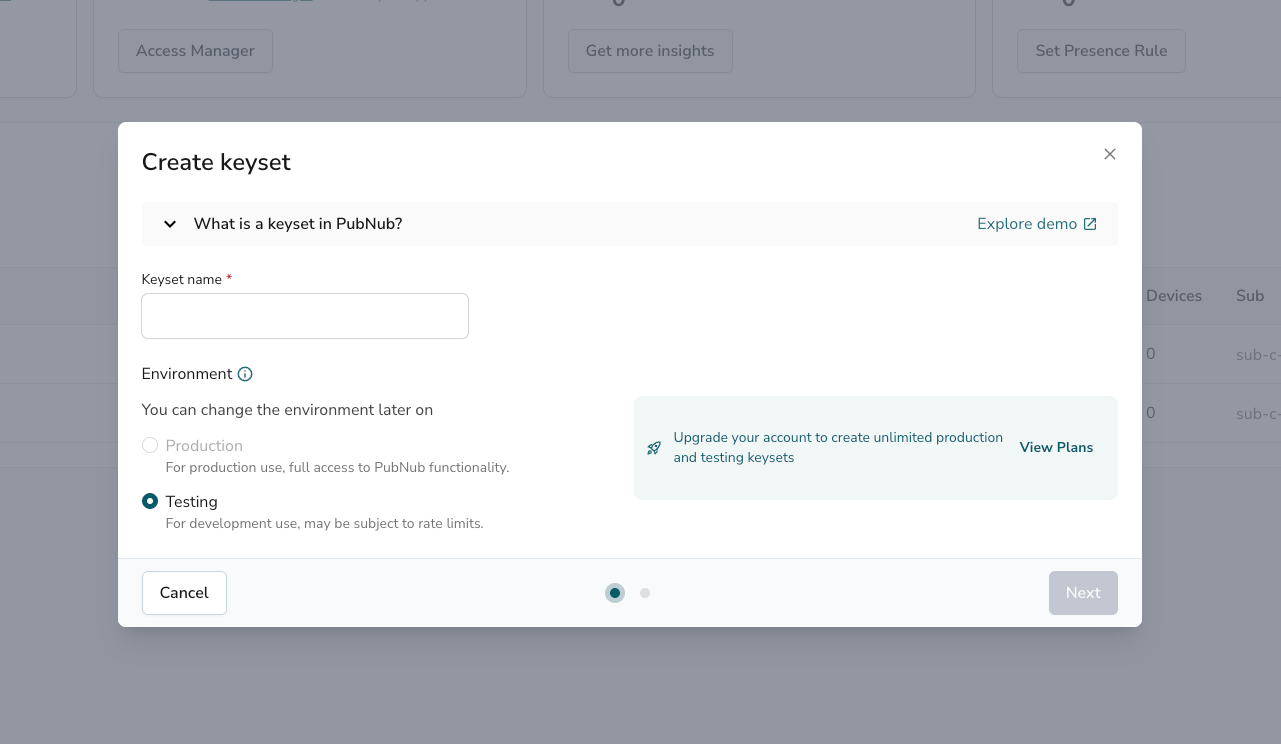
The next screen lists the services that come with the keyset. Presence is already on. Under Presence, choose All channels, then click Create.
The default, Selected channels only, doesn't track presence until you add a rule in Presence Management. Your drawings would still sync, but the other users' names, the user count and the cleanup when someone leaves wouldn't work. All channels is fine for a test keyset with a few users; the portal warns it can incur high costs on a busy one. On a production keyset, keep Selected channels only and add a rule for collaboration-demo.
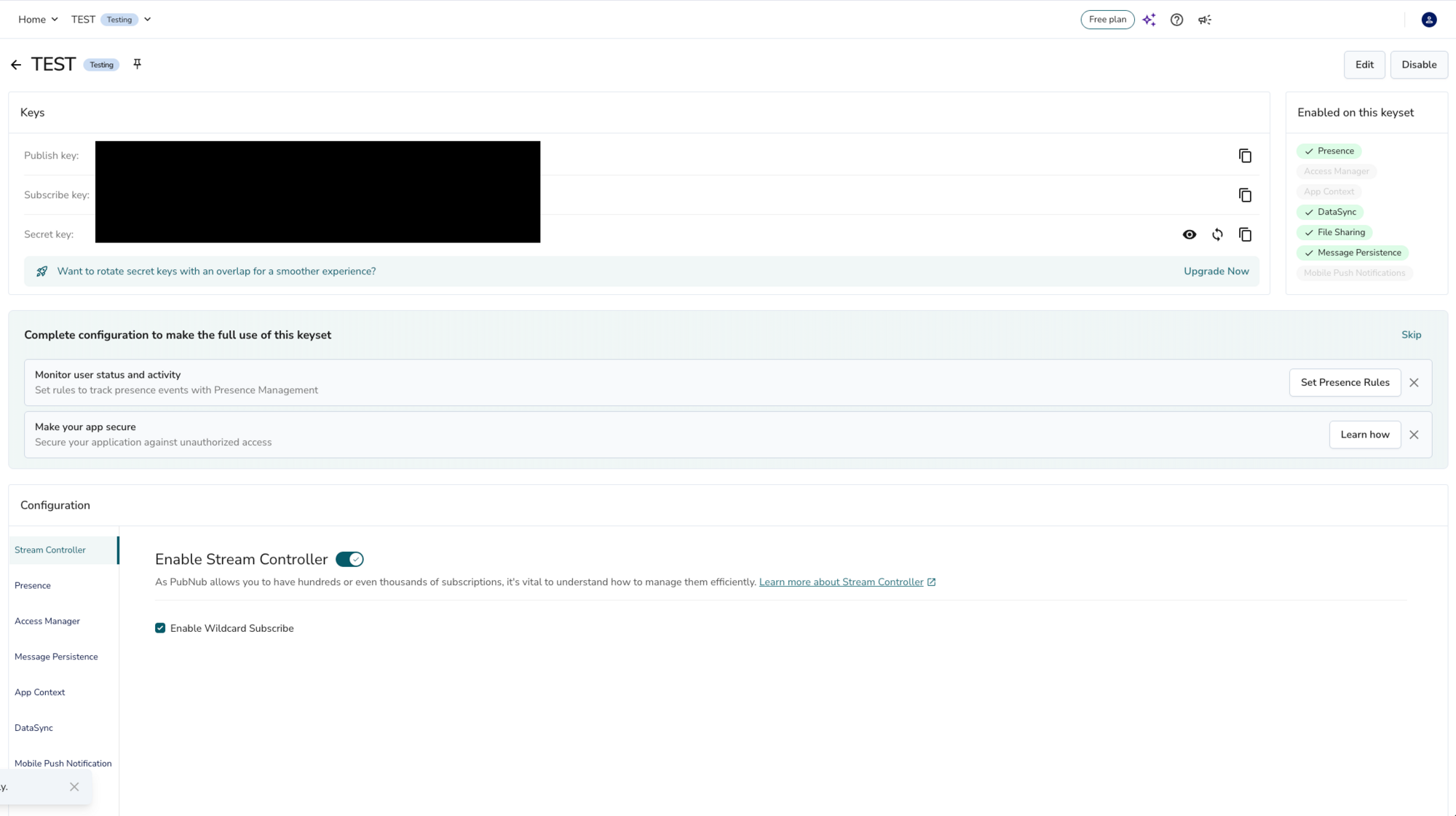
Finally, copy the Publish key and the Subscribe key from the Keys panel. You paste them into js/config.js in the build steps.
Build and run
CoDoodler uses three PubNub features on one channel, collaboration-demo:
- Messages carry the strokes, so everyone's canvas shows the same drawing.
- Signals carry the cursor positions. A signal is small (up to 64 bytes) and fast, and PubNub doesn't store it, which suits data that's out of date a moment later.
- Presence tracks who is on the canvas, and Presence state holds each user's name.
The steps below walk through js/app.js. Open it next to this page.
Step 1. Add your PubNub keys
Open js/config.js and replace YOUR_PUBLISH_KEY and YOUR_SUBSCRIBE_KEY with your keys from step 2. The file creates the PubNub client that js/app.js uses:
// Set your PubNub keys here (step 2 of the tutorial).
const pubnub = new PubNub({
  publishKey: 'YOUR_PUBLISH_KEY',
  subscribeKey: 'YOUR_SUBSCRIBE_KEY',
  userId: 'doodler-' + self.crypto.getRandomValues(new Uint32Array(1))[0], // A new random User ID for every page load.
  presenceTimeout: 20 // Seconds without a heartbeat before PubNub reports a timeout.
})
Every page load gets a new random User ID, so each browser tab is a separate user. presenceTimeout is how long PubNub waits for a heartbeat before it reports that a user timed out. The default is 300 seconds; with 20, the cursor of someone whose connection drops disappears much sooner. The trade-off: once you set presenceTimeout, the SDK also sends a heartbeat about every 9 seconds (presenceTimeout / 2 - 1; by default it sends none), and each heartbeat is a request on your account.
index.html loads the SDK from the PubNub CDN, then your config, then the app. js/demo-config.js and js/demo-tracking.js are only for the hosted demo on pubnub.com and do nothing on your copy:
<script src="https://cdn.pubnub.com/sdk/javascript/pubnub.13.1.2.min.js"></script>
<!-- Only for the hosted demo on pubnub.com; does nothing on your copy. -->
<script src="js/demo-config.js"></script>
<script src="js/config.js"></script>
<script src="js/app.js"></script>
Step 2. Subscribe to the channel
The app makes one subscription to collaboration-demo. With receivePresenceEvents: true it gets the presence events too, not only messages and signals:
// Subscribe to the channel to get strokes (messages), cursors (signals) and who's online (presence events).
const subscription = pubnub.channel(CHANNEL).subscription({ receivePresenceEvents: true })
Each kind of event has its own handler on the subscription. The message handler draws what the others published, or clears the canvas when someone clicks Clear All. Your own messages come back to you as well, so it skips those: you drew them already.
subscription.onMessage = event => {
  if (event.publisher === pubnub.getUserId()) return // You already drew it.
  const message = event.message
  if (message && message.clear === true) {
    ctx.clearRect(0, 0, canvas.width, canvas.height)
  } else if (message && Array.isArray(message.data)) {
    drawFromStream(message.data)
  }
}
Anyone with your keys can publish to the channel, so the handler only draws messages with the expected shape. Then the app subscribes:
subscription.subscribe()Step 3. Draw and share strokes
The canvas fills the window. The app listens for pointer events, which cover the mouse, pens and touch. While you hold the button down (or keep your finger on the screen), each move draws a line segment from the last point to the new one, and saves it in plots:
function draw (e) {
  if (!drawing) return
  const newCoordinates = pointerPosition(e)
  drawOnCanvas(color, oldCoordinates, newCoordinates)
  plots.push({ color, oldCoordinates, newCoordinates })
  // Publishing in batches keeps the number of requests down; browsers throttle many parallel requests.
  if (plots.length >= BATCH_SIZE) {
    publish({ data: plots })
    plots = []
  }
  oldCoordinates = newCoordinates
}
Publishing one message per segment would mean dozens of requests a second, and browsers throttle many parallel requests. So the app publishes the segments in batches of BATCH_SIZE (10), and the rest when you let go:
function endDraw () {
  if (!drawing) return
  drawing = false
  if (plots.length > 0) publish({ data: plots })
  plots = []
  oldCoordinates = {}
  nameInput.focus()
}
publish() sends a batch to the channel:
async function publish (data) {
  try {
    await pubnub.publish({ channel: CHANNEL, message: data })
  } catch (error) {
    console.log(error)
  }
}
On the other side, drawFromStream() draws each segment it gets and skips anything that isn't one:
function drawFromStream (segments) {
  segments.forEach(segment => {
    if (!segment || typeof segment.color !== 'string') return
    const { oldCoordinates: start, newCoordinates: end } = segment
    if (isPoint(start) && isPoint(end)) drawOnCanvas(segment.color, start, end)
  })
}

function isPoint (point) {
  return !!point && Number.isFinite(point.x) && Number.isFinite(point.y)
}
Step 4. Clear the canvas
Clear (top left) clears only your canvas. Clear All (bottom left) also publishes { clear: true }, and the message handler from step 2 clears everyone else's canvas:
// Clear: clears only your canvas.
document.getElementById('clearSelfCanvasButton').addEventListener('click', () => {
  ctx.clearRect(0, 0, canvas.width, canvas.height)
})

// Clear All: clears your canvas and tells everyone else to clear theirs.
document.getElementById('clearAllCanvasButton').addEventListener('click', () => {
  ctx.clearRect(0, 0, canvas.width, canvas.height)
  publish({ clear: true })
})
Step 5. Show who's online
The presence handler keeps the user count in the top right corner up to date and removes the cursor of anyone who leaves or times out. state-change events carry no occupancy, so they don't change the count.
subscription.onPresence = event => {
  if (event.action !== 'state-change') setOccupancy(event.occupancy) // state-change events carry no occupancy.
The full handler in js/app.js also handles interval events, which PubNub sends instead of individual joins and leaves on channels with about 20 or more users. Your tutorial channel won't get there. The rest of the handler:
if (event.uuid === pubnub.getUserId()) return
switch (event.action) {
  case 'join':
  case 'state-change':
    if (event.state) getUser(event.uuid).setName(cleanName(event.state.name) || placeholderName(event.uuid))
    break
  case 'leave':
  case 'timeout':
    removeUser(event.uuid)
    break
}
Presence events only tell you about changes. To see who is already there when you open the page, the app asks PubNub with hereNow once the connection is up, and gets each user's name from their Presence state. It also removes the cursors of users who left while it wasn't listening, for example while the page was in the back/forward cache:
pubnub.addListener({
  status: statusEvent => {
    if (statusEvent.category === 'PNConnectedCategory') {
      sendName() // Your name goes out once you're on the channel.
      loadUsers()
    }
  }
})async function loadUsers () {
try {
const result = await pubnub.hereNow({ channels: [CHANNEL], includeState: true })
setOccupancy(result.totalOccupancy)
const occupants = (result.channels[CHANNEL] && result.channels[CHANNEL].occupants) || []
const present = new Set(occupants.map(occupant => occupant.uuid))
Object.keys(users).forEach(userId => { // Remove cursors of users who left while you weren't listening.
if (userId !== pubnub.getUserId() && !present.has(userId)) removeUser(userId)
})
occupants.forEach(occupant => {
if (occupant.uuid === pubnub.getUserId()) return
const state = occupant.state || {}
getUser(occupant.uuid).setName(cleanName(state.name) || placeholderName(occupant.uuid))
})
} catch (error) {
console.log(error)
}
}Browsers don't tell PubNub when a tab closes, so by default a closed tab would stay on the canvas until the presence timeout. The app unsubscribes on pagehide, which sends a leave event, so the others usually see you go at once. If that request doesn't get out before the tab closes, PubNub reports a timeout after the 20-second presence timeout instead. The app subscribes again if the browser restores the page from its back/forward cache:
// Leave the channel when the tab closes, so your cursor disappears for the others right away.
window.addEventListener('pagehide', () => subscription.unsubscribe())
// Back button: the browser restored this page from its cache, so subscribe again.
window.addEventListener('pageshow', event => {
  if (event.persisted) subscription.subscribe()
})
Step 6. Share cursors with signals
Every pointer move updates your own cursor label and sends your position to the others:
// Track your cursor: move your own label and send the position to the others.
window.addEventListener('pointermove', event => {
  getUser(pubnub.getUserId()).moveTo(event.clientX, event.clientY)
  sendPosition(event.clientX, event.clientY)
})
sendPosition() sends a signal at most every 50 ms. If a move comes in sooner, it waits, so the last position always goes out, and a newer one replaces it if you keep moving:
// Send your cursor position as a signal: small, fast and not stored.
function sendPosition (x, y) {
  clearTimeout(positionTimer)
  const wait = SIGNAL_INTERVAL - (Date.now() - lastSignal)
  if (wait > 0) { // Too soon: send this position when the interval is over, unless a newer one comes first.
    positionTimer = setTimeout(() => sendPosition(x, y), wait)
    return
  }
  lastSignal = Date.now()
  pubnub.signal({ channel: CHANNEL, message: { x, y } }).catch(error => console.log(error))
}
The signal handler moves that user's cursor. getUser() creates the cursor the first time a user shows up:
subscription.onSignal = event => {
  if (event.publisher === pubnub.getUserId()) return
  const position = event.message || {}
  if (Number.isFinite(position.x) && Number.isFinite(position.y)) {
    getUser(event.publisher).moveTo(position.x, position.y)
  }
}
Each cursor is a Sprite: a pencil image with a name label. Your own cursor sits right under the pointer. The others glide towards the last position they got, covering a good part of the remaining distance each frame, so they move smoothly between signals and still keep up with fast drawing. The name is set with textContent, so a name can't inject HTML into the page.
Sprite.prototype.setName = function (name) {
  this.label.textContent = name
}
Step 7. Share names with Presence state
Presence state is a small object PubNub keeps for each user on a channel. Everyone who joins later gets it from hereNow, and everyone on the channel gets a state-change event when it changes. That suits a name, which changes rarely and has to reach late joiners too.
Your cursor shows your name as you type. The app sends it 300 ms after you stop typing, not on every key:
// Your name: shown on your cursor at once, sent when you stop typing.
nameInput.addEventListener('input', () => {
  username = cleanName(nameInput.value) || placeholder
  getUser(pubnub.getUserId()).setName(username)
  clearTimeout(nameTimer)
  nameTimer = setTimeout(sendName, NAME_DELAY)
})// Store your name in Presence state. The others get it as a state-change event.
async function sendName () {
try {
await pubnub.setState({ channels: [CHANNEL], state: { name: username } })
} catch (error) {
console.log(error)
}
}Names go through cleanName(), both yours and the ones that come from the network: anyone with your keys can set any state.
// Letters, digits, spaces and _ only. Anyone with the keys can set state, so names from the network go through this too.
function cleanName (name) {
  return String(name ?? '').replace(/[^\p{L}\p{N}_ ]/gu, '').substring(0, MAX_NAME_LENGTH).trim()
}

function placeholderName (userId) {
  return 'ANON_' + String(userId).slice(-4)
}
Until you type a name, you're ANON_ plus the last four digits of your User ID.
Step 8. Remove idle users
After 30 seconds without a pointer move, tap or key press, the app unsubscribes, which sends a leave event, and opens timeout.html. The others' presence handler removes your cursor. Any input resets the timer:
// Leave the channel after 30 seconds without input. Any input resets the timer.
; ['pointermove', 'pointerdown', 'keydown'].forEach(type => document.addEventListener(type, resetIdleTime))
resetIdleTime()

function resetIdleTime () {
  clearTimeout(idleTimer)
  idleTimer = setTimeout(idleUnsubscribe, IDLE_TIMEOUT)
}

function idleUnsubscribe () {
  subscription.unsubscribe() // The others get a leave event and remove your cursor.
  window.location.replace('./timeout.html')
}
Step 9. Run your application
Open
index.htmlin your browser. Type your name and move the mouse: your name follows your cursor.Hold down the left mouse button and move to draw. Pick a color at the bottom.
Open
index.htmlin a second browser window, or in a private window, to join as another user. The count in the top right goes to 2, and you see each other's drawings, cursors and names.Click Clear All: both canvases clear. Clear clears only yours.
Close one window: its cursor disappears from the other.
Drawings and cursors sync, but the count shows 0 and the other cursors are labelled ANON_ plus four digits? Presence isn't tracking collaboration-demo. In the Admin Portal, set Presence to All channels on your keyset, or add a Presence rule for the channel (step 2).
Nothing syncs at all? Check the keys in js/config.js and the browser console for errors.

Congratulations - what's next?
You have a shared canvas where everyone sees the others' strokes, cursors and names as they happen, and who is on the canvas: messages for the drawing, signals for the cursors and Presence for the users, all on the PubNub JavaScript SDK.
A user who joins late sees an empty canvas, because the strokes are only sent to whoever is subscribed. If Message Persistence is on in your keyset (the Admin Portal turns it on for new keysets, with 7 days on a Testing keyset), then to show the drawing so far you can load the stroke messages with fetchMessages when the page opens. It returns up to 100 messages per call, so page through them, and start drawing after the last Clear All.
Go further with the JavaScript SDK
JavaScript SDK documentation Signals Presence More tutorialsBefore you go to production
This tutorial lets anyone with your keys publish to the channel and set any Presence state. Use Access Manager to give each user a token for the channels they may use, and give each user a stable User ID instead of a random one.
Ready to get beyond proof of concept?
Schedule a 15-minute chat with one of our experts to get your project moving.
Talk to an ExpertTake it to production on your own keys
Create a free PubNub account to get permanent keys for this app.