
Building a PubNub-Powered Chat App with Sencha Touch 2

Picking up a new web framework

Sencha Touch 2 is a new framework for building super slick mobile applications. I decided to put on my mobile dev hat on and experience it for myself. And of course, I wanted to see how nicely it played with PubNub. Turns out, it delivered. Sencha is not only intuitive, it’s a blast. There were certainly a few “gotcha”s, but I found the experience to be extremely pleasant. Here’s what I learned.

First step is installation. This was actually not the best thing in the world. It wasn’t abundantly clear what files / folders needed to exist in what places. Furthermore, the documentation and “getting started” documents on the website were a completely distinct set from the ones that come when you unpack it the download. There’s a Sencha Touch 2 download, but there’s also a SDK Tools download. I eventually figured out that the latter made it the easiest. The magic command was this:

sencha generate app example-app ../example-app

That started a new project with all the right files and folders in the right places.From there, I was off to the races.
app.js and app.json: the heart of your Sencha Touch 2 app

This script creates a few files, which do various things. I found myself spending most of my time in two files: app.js and app.json. app.js is the main entry point for the app, and app.json is the app configuration file. Let’s start with app.json. This is where you tell your Sencha App about all the resources it needs. I created a `resources/js` folder, dropped in the pubnub javascript library, and then added it to the top of the list like so:

1
2
3
4
5
6
7
8
9
10
11
12
"js": [
    {
        "path": "resources/js/pubnub-3.1.min.js"
    },
    {
        "path": "../sencha-sdk/sencha-touch.js"
    },
    {
        "path": "app.js",
        "update": "delta"
    },
],

Let’s take a look at app.js. Here’s where you’ll define all the interface elements you want on screen and how they’ll interact with each other.

1
2
3
4
5
6
7
8
9
10
11
12
13
14
15
16
17
18
19
20
21
22
23
24
25
26
27
28
29
30
31
32
33
34
35
36
37
38
39
40
41
42
43
44
45
46
47
48
49
50
51
52
53
54
55
56
57
58
59
60
61
62
63
64
65
66
67
68
69
70
71
72
73
74
75
76
77
78
//<debug>
Ext.Loader.setPath({
    'Ext': '../sencha-sdk/src'
});
//</debug>
Ext.application({
    "name": "PubNub-SenchaTouch",
    // Setup your icon and startup screens
    phoneStartupScreen: 'resources/loading/Homescreen.jpg',
    tabletStartupScreen: 'resources/loading/Homescreen~ipad.jpg',
    glossOnIcon: false,
    icon: {
        57: 'resources/icons/icon.png',
        72: 'resources/icons/icon@72.png',
        114: 'resources/icons/icon@2x.png',
        144: 'resources/icons/icon@114.png'
    },
    // Require any components we will use in our example
    requires: [
        'Ext.field.Text',
        'Ext.field.Search',
        'Ext.field.Select',
        'Ext.Button',
        'Ext.List',
        'Ext.Img'
    ],
    launch: function() {
        //... a few things omitted, see below
        Ext.create('Ext.Container', {
            fullscreen: true,
            layout: 'vbox',
            items: [
                {
                    xtype: 'toolbar',
                    flex: 1.5,
                    items: [
                        {
                            xtype: 'spacer'
                        },
                        {
                            xtype  : 'panel',
                            html   : '<img style="height:25px; margin-top:15px; margin-bottom:15px;" src="https://pubnub.s3.amazonaws.com/2012/pubnub-large.png">',
                            height : 60
                        },
                        {
                            xtype  : 'panel',
                            html   : '<img style="height:60px;" src="http://www.theberryfix.com/wp-content/uploads/sencha_logo.png">',
                        },
                        {
                            xtype: 'spacer'
                        }
                    ]
                },
                {
                    xtype: 'panel',
                    layout: 'fit',
                    flex: 7,
                    items: [
                        messageList,
                    ]
                },
                {
                    xtype: 'toolbar',
                    flex: 1.5,
                    items: [
                        nameField,
                        chatField,
                        submitButton,
                    ]
                }
            ]
        });

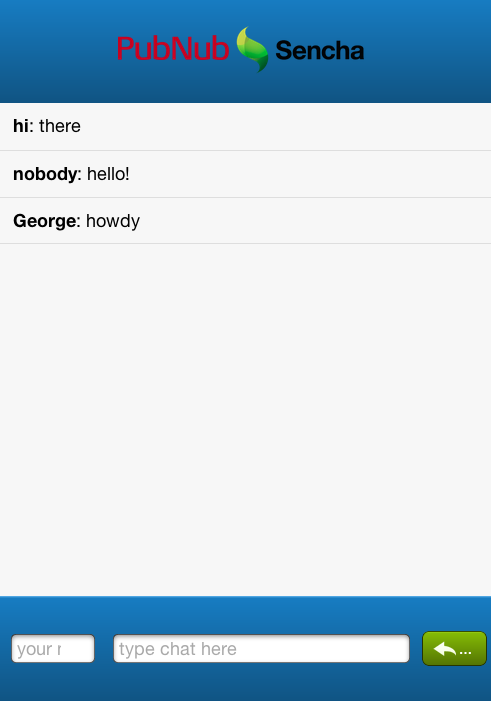
We’ll use the `vbox` layout which allows you to subdivide vertically based on the `flex` attribute, which you provide to all of the children items. I gave a 1.5 flex to the top and bottom toolbars, and 7 flex to the main chat window. This seemed to look decent. Within the top toolbar, I created two panels, one for each logo, and two spacers surrounding them in order to center them.

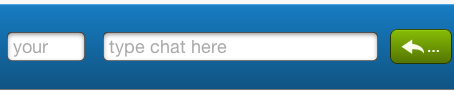
Within the bottom toolbar, I added three interactive elements. A text field for name entry, a text field for the chat message itself, and a submit button. Here’s they are defined.
1
2
3
4
5
6
7
8
9
10
11
12
13
14
15
16
17
18
19
20
21
22
23
24
25
26
27
28
29
30
31
32
33
34
var chatField, nameField, submitButton, messageList;
// Create a text field with a name and placeholder
chatField = Ext.create('Ext.field.Text', {
    name: 'chat_input',
    id: 'chat_input',
    placeHolder: 'type chat here',
    flex: 7,
    listeners: {
      action: sendMessage,
      focus:  function() {
        messageList.getScrollable().getScroller().scrollToEnd();
      }
    }
});
nameField = Ext.create('Ext.field.Text', {
    name: 'name_input',
    id: 'name_input',
    placeHolder: 'your name',
    flex: 2
});
submitButton = Ext.create('Ext.Button', {
    iconCls: 'reply',
    iconMask: true,
    text: 'Send',
    ui: 'confirm',
    flex: 1,
    listeners: {
      tap:  sendMessage
    }
});

This is pretty straight forward. I give them names, ids, placeholder text, etc. Layout-wise, again I’m using the `flex` element to define how much space they take up in relation to each other. The most important part here is that `listeners` field. This is where I tell the chat field and submit button to listen for “return” and “tap” events, respectively, and point them at a callback function called sendMessage. That callback is where PubNub comes into play.

Enter PubNub

First, lets initialize PubNub using the init() function:

1
2
3
4
5
6
var pubnub = PUBNUB.init({
       publish_key   : 'demo',
       subscribe_key : 'demo',
       ssl           : false,
       origin        : 'pubsub.pubnub.com'
 });

And here’s how we send messages:

1
2
3
4
5
6
7
8
9
10
11
12
13
14
15
16
function sendMessage() {
  pubnub.publish({
    channel  : 'sencha_chat',
    message  : {
      name    : "chat_message",
      data    : {
        message : Ext.getCmp('chat_input').getValue(),
        user    : (Ext.getCmp('name_input').getValue() || "nobody")
      }
    },
    callback : function() {
      Ext.getCmp('chat_input').setValue(''); // clear whatever you just typed from the chat box
      Ext.getCmp('chat_input').focus(); // keep the focus on the chat box 
    }
  });
}

So now, anytime a user presses enter while typing, or taps submit, it triggers a `pubnub.publish` command and subsequently sends the chat message through the pubnub infrastructure. That’s only half the battle, though. Now we need to do a `pubnub.subscribe` and listen for any chat messages – including our own.

1
2
3
4
5
6
7
8
9
10
11
12
13
14
15
16
17
18
19
20
21
22
23
function scrollToBottom() {
    messageList.getScrollable().getScroller().scrollToEnd();
}
pubnub.subscribe({
  channel  : 'sencha_chat',
  callback : function(message) {
    if (message.name && (message.name == 'chat_message')) {
      messageList.getStore().add({
          user: (message.data.user || nobody),
          message: message.data.message
      });
      scrollToBottom();  
      setTimeout( function() {
        scrollToBottom();
      }, 10);
      setTimeout( function() {
        scrollToBottom();
      }, 50);
    }
  }   
});

Once we get a message, we make sure it’s the right type of message (message.name == ‘chat_message’) and add it to the data store associated with the the main chat view. Notice that mess of scrollToBottom()? That is a workaround to an annoying gotcha. Sencha Touch does not appear to provide a callback to the getStore().add() function. What we want to do is scroll to the bottom of the view after the data is added. Because that .add() function is asynchronous, simply adding it after the call doesn’t work. setTimeout() is certainly not a “best practice”, generally speaking, but that fix does seem to work for now.

Finally, on initial page load, let’s pull the last 10 messages from pubnub.history() and add them to the data view.

1
2
3
4
5
6
7
8
9
10
11
12
13
14
15
16
17
18
// preload prev chats
pubnub.history({
  channel : 'sencha_chat',
  limit : 10
}, function(messages) {
  messageList.getStore().removeAt(0); //remove dummy
  console.log(messages);
  for (m in messages) {
    var message = messages[m];
    messageList.getStore().add({
        user: (message.data.user || nobody),
        message: message.data.message
    });
  }
  setTimeout( function() {
    scrollToBottom();
  }, 100);
});

That wraps it up. You can find all the code for this here and a live demo here.

View all posts
