Billing alerts
The Billing alert feature sends notifications when your PubNub usage counts or costs meet the trigger details criteria. This feature is available on Starter and Pro plans.
Notifications always appear in the Admin Portal. You can also receive email, Slack, and/or Microsoft Teams notifications.
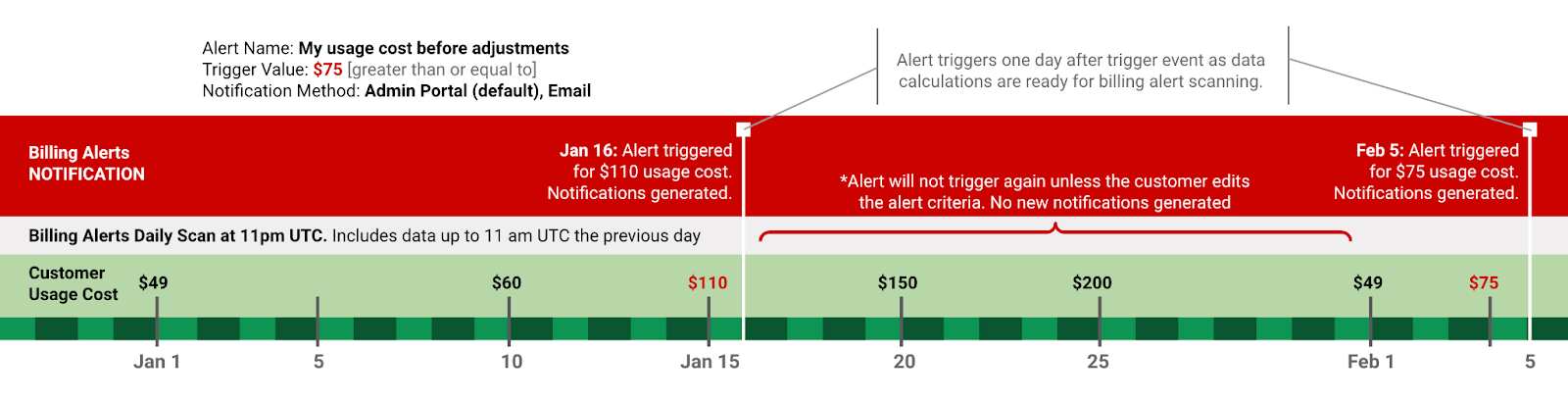
"I want to know when I've spent 75$"
On the Billing alerts page, you see a table of alerts from most recent to oldest. Each alert includes the full trigger history.
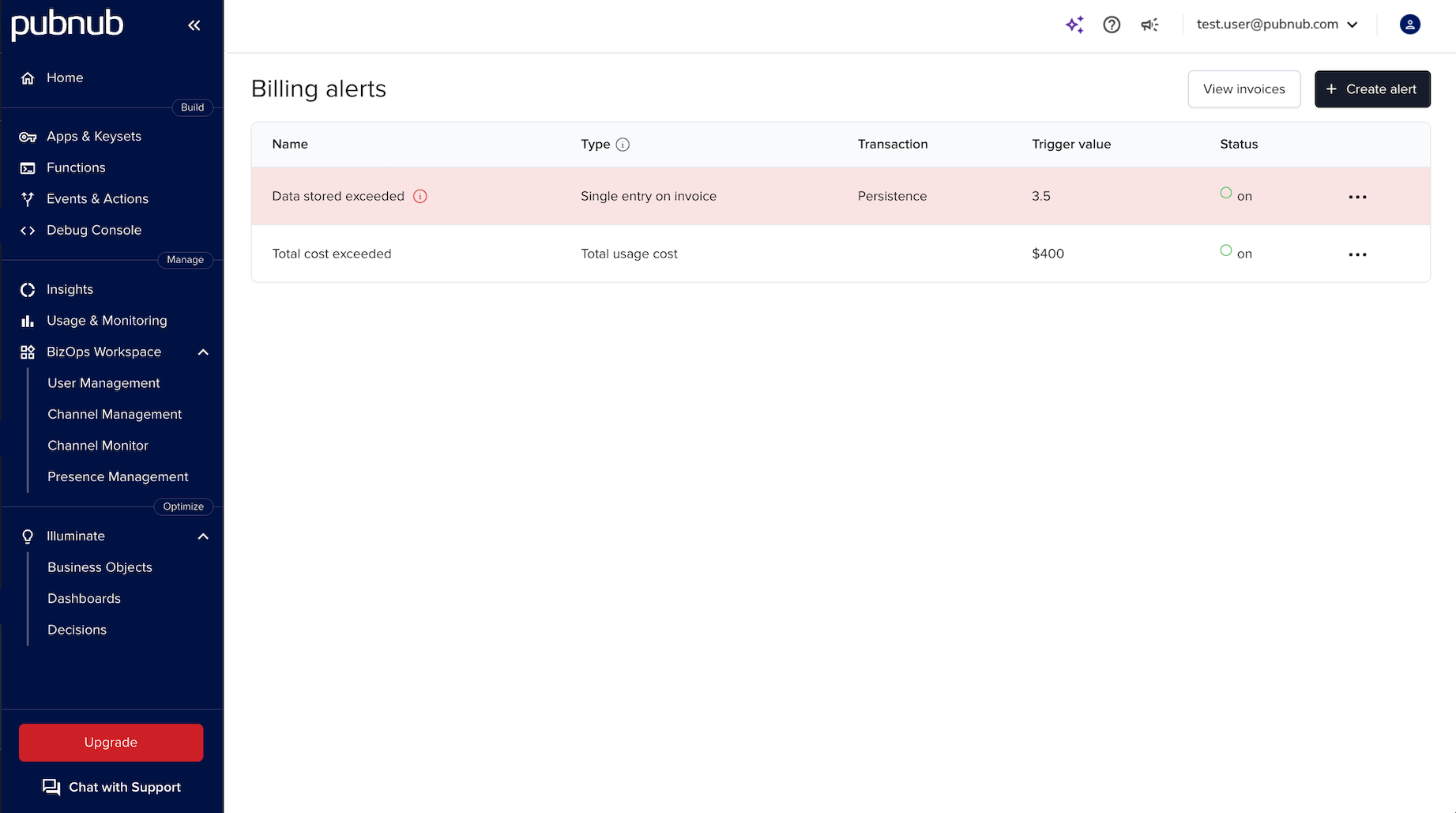
Account admins can create, edit, and resolve billing alerts. Other Admin Portal roles can view alerts. Each alert includes general info, trigger conditions, and optional extra notification methods.
Create billing alerts
To create a billing alert:
-
Click the + Create alert button in the top-right corner of the screen. The Create billing alert pane opens.
-
In the topmost section of the Create billing alert pane, provide the following information:
Parameter Description Options Alert name Name for your billing alert. N/A Alert category Category to trigger the billing alert for. Total usage cost or Single entry on invoice
If you select Single entry on invoice, select the transaction usage type to be notified about. Depending on your plan, options include:
Edge Transactions
Functions
MAU (Monthly Active Users)
Message Actions
Persistence
Transactions Overage
Replicated Transactions
Signals TransactionsDescription Explanation of what the billing alert is about. This parameter is optional. N/A -
In the Trigger details section, configure the criteria for triggering the alert:
Category Option Description Trigger Cost Trigger based on the monetary value (US dollars). Unit Trigger based on the number of transactions. Trigger type Value Use a specific number, for example $50 or 500 transactions. Percentage Use a percentage, for example 20% of previous usage cost or 20% of previous transactions. Trigger value Number to be used for the threshold. Billing alerts are triggered when the actual production value is greater than or equal to the entered trigger value. -
In the Notification methods section, configure additional notification methods for a triggered alert. You can be notified by email (one or more recipients), Slack, and/or Microsoft Teams.
-
Click the Create alert button to save your billing alert.
Billing alert notifications
When a billing alert is triggered, notifications are displayed in the Admin Portal. Notifications are generated once per month unless you change the trigger details (category, conditions, or value). Billing alert notifications reset on the first of every month. Billing alert scans run daily at 9 PM Coordinated Universal Time (UTC).
Notifications appear in the following parts of the Admin Portal:
-
As a notification banner on the Homepage.

-
As a notification banner on the Plans and billing page.
-
As a badge on the account menu in the top-right of the Admin Portal.
-
As a highlighted item on the main Billing alerts page.
Notification methods
When creating a billing alert, you can also receive notifications outside the Admin Portal.
Choose a method, fill in the required details, then select Add:
- Email: Provide one or more email addresses.
- Slack: Provide one or more webhook URLs and channels.
- Microsoft Teams: Provide one or more webhook URLs.
You can choose one or all of them for each billing alert.
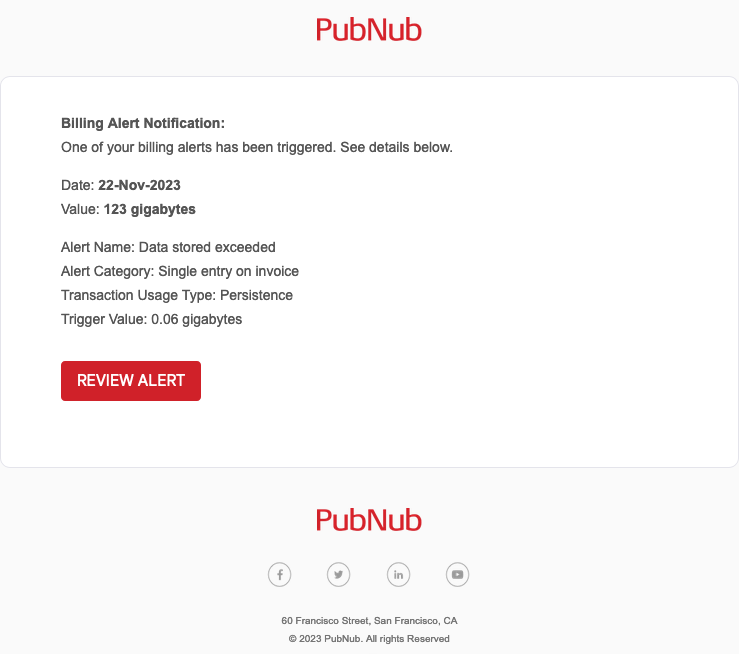
Emails are sent from pubnub@pubnub.com. Add this address to your allowlist. Click Review Alert in the email to resolve or dismiss the notification.